How to Make a GTA 6 AI Video: Turn Yourself Into a GTA VI Loading Screen
To make a GTA 6 loading screen video of yourself, add one photo on the GTA 6 Loading Screen page. Try the opening 4 seconds with free credits to check the likeness, then use purchased credits to make the full 10-second video. There is nothing to write and nothing to edit.
This is how to create a GTA 6 AI video for the GTA 6 AI trend: you start leaning on a red convertible in a sunset street by the sea, and the scene turns into a bold illustrated loading screen, then a four-panel poster. The finished poster holds for the last two seconds, so you can screenshot it. This page and the videos made here are fan-made and not made by, endorsed by or affiliated with Rockstar Games or Take-Two Interactive, the makers of Grand Theft Auto.
What you need
- One photo of yourself with the face clearly visible. One person per photo. JPG or PNG, up to 5 MB.
- The photos must be of adults who agreed to be in the video. No celebrities or other public figures.
- An account: the free 4-second version uses daily free credits, the full video uses purchased credits.
Step by step
- 1
Know what the video shows
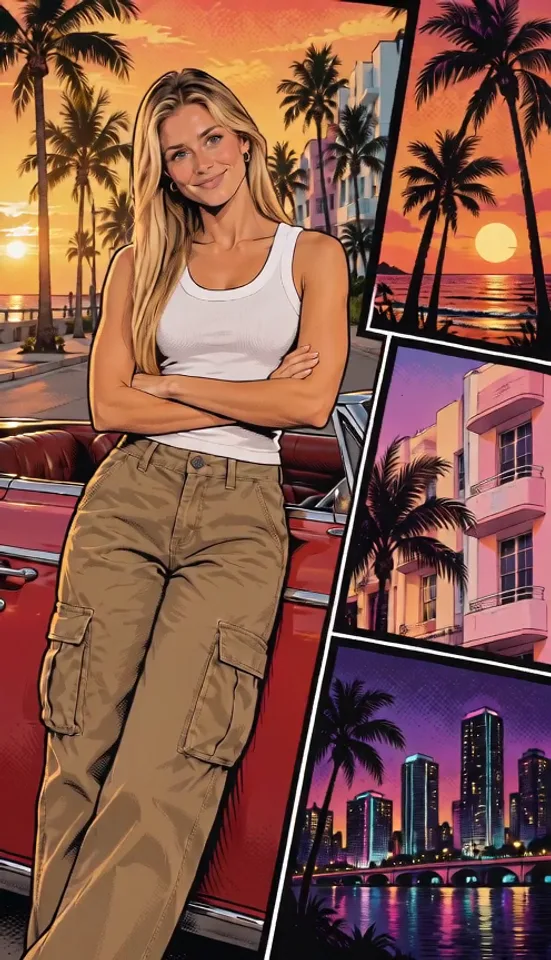
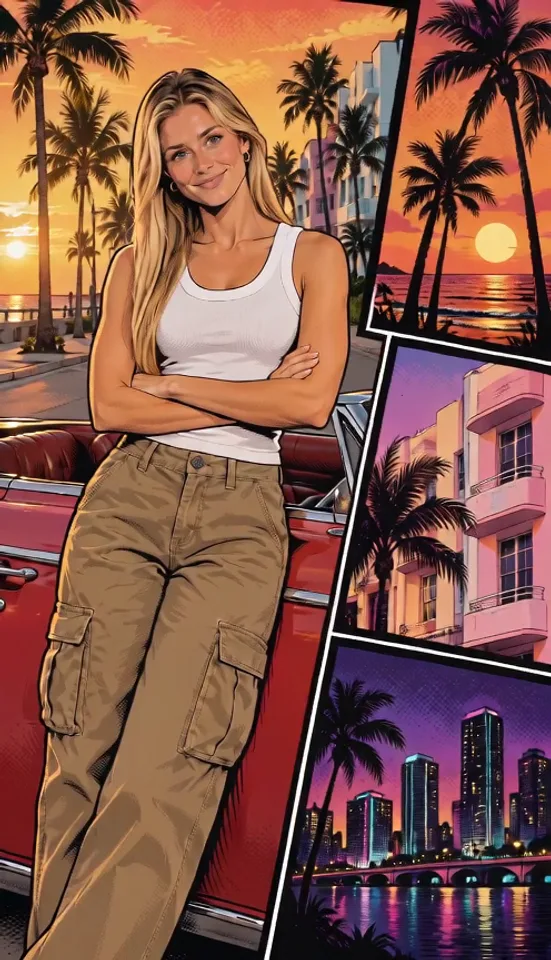
There is one star: you. In a realistic sunset street with tall palms, pastel art-deco buildings and a red vintage convertible, you lean on the car, turn to the camera, smile and cross your arms, then hold still. About six seconds in, the whole scene turns into an illustration with bold black outlines and halftone shading, then splits into a large panel of you and three slanted panels: a sunset over the sea, a pink art-deco building and a city skyline at night. The video has no text, no logos and no game characters.
- 2
Add your photo
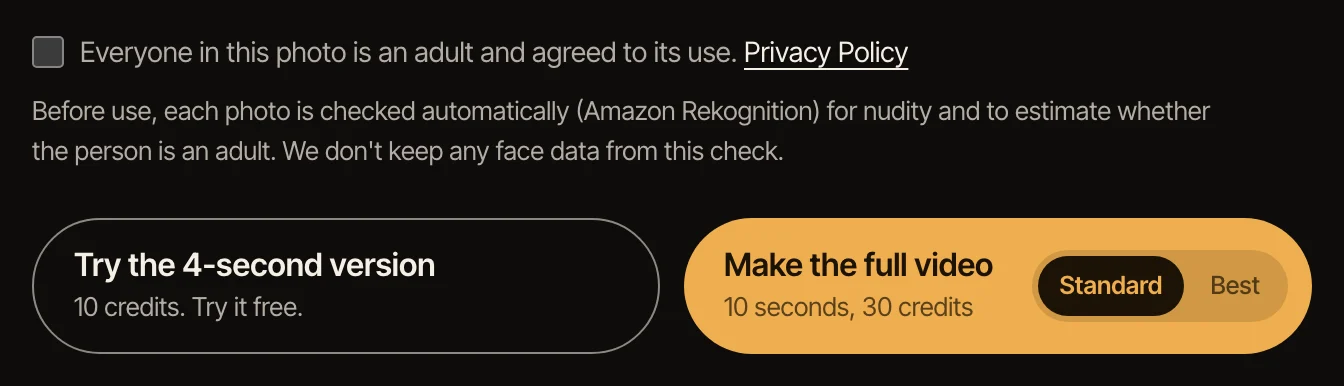
On the GTA 6 Loading Screen page, click the photo box, choose your photo and check the box to confirm that anyone in it agreed to be in the video. Your own clothes stay in the video.
- 3
Make the 4-second version first
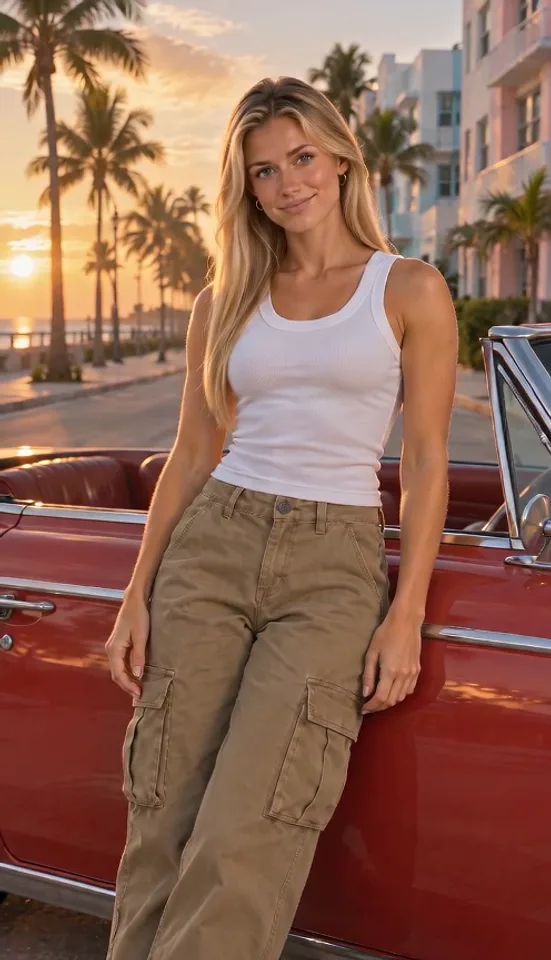
It shows the turn to the camera and the start of the arms crossing, still as a realistic scene; the change into an illustration comes in the full video. It is made with free credits, so you can see how well your face comes through before spending anything.
- 4
Make the full video
Pick Standard or Best, then make the full 10-second vertical video. Best is the higher-quality option. The full video uses purchased credits, and when it is ready you will find it in My videos.
- 5
Download it and add the sound when you post
Videos made with purchased credits have a Download MP4 button. The file is silent on purpose: add a trending sound in TikTok, Reels or Shorts when you post. The last frame also works as a wallpaper or profile picture, so take a screenshot of it too.
Get a better likeness
The face in the video comes from the face in the photo, so the photo decides most of the result. Use one where the face is big in the frame, lit from the front, with no sunglasses, hat brim or hair across the eyes.
A face-and-shoulders or waist-up photo works best. A full-body photo works, but the face is small, so the likeness has less to go on. Your clothes come from the photo; the street and the car are part of the scene.
Test with the 4-second version first. The full video starts from the same opening, so if your face looks right there, that is a good sign.
If something goes wrong
A photo is refused: the photo may show more than one face, a face turned away or covered, someone who looks under 18, or nothing we can recognize as a person. Use another photo of one person on their own and facing the camera.
Not enough credits: the full video uses purchased credits. Free credits cover the 4-second version only.
The video failed: the credits go back to your account automatically. Try again; if it fails twice with the same photo, try a different one.
Other ways people make it
Many people first make a still loading-screen style picture with ChatGPT or Gemini, then animate it in a second tool. That takes two steps and some trial and error. For the still picture on its own, our GTA loading screen AI prompt page makes one from your photo.
Our GTA 6 AI video generator works in one step, from photo to video: the scene and the moves are already set, and you only choose a photo.
Sources: Rockstar Newswire: GTA 6 launch date, Cyberlink: the GTA filter trend, Epidemic Sound: latest TikTok trends, Il Sole 24 Ore: GTA 6 on social media before its release
Questions
Do I need a prompt?
No. You only add a photo; the scene and the moves are already set.
Is this a GTA 6 filter?
Not a photo filter: you get a 10-second video, made new from your photo. The last frame also works as a still picture.
What can I make for free?
The 4-second version, made with free credits. The full 10-second video and the download use purchased credits.
Can I make a GTA loading screen dog video?
Not yet. For now the video takes a photo of one person. Pet photos are still being tested, and this page will say so when they work.
Is there a song?
No, the video is a silent MP4. There is no single song for this trend: when you post, search “GTA 6 loading screen” under Add sound in TikTok, or pick any trending sound in TikTok, Reels or Shorts.
Can I do this on my phone?
Yes. The page works in a phone browser: choose a photo from your camera roll, make the video and download it. It is already vertical (9:16), the shape TikTok, Reels and Shorts use.
Can I put a celebrity in it?
No. Photos of people must show adults who agreed to be in the video, and no public figures.
Is this an official tool?
No. This is a fan-made AI video tool. It is not made by, endorsed by or affiliated with Rockstar Games or Take-Two Interactive.
Add one photo of you and watch a sunny seaside street scene freeze and turn into a bold illustrated loading screen.
Make your GTA 6 Loading Screen video